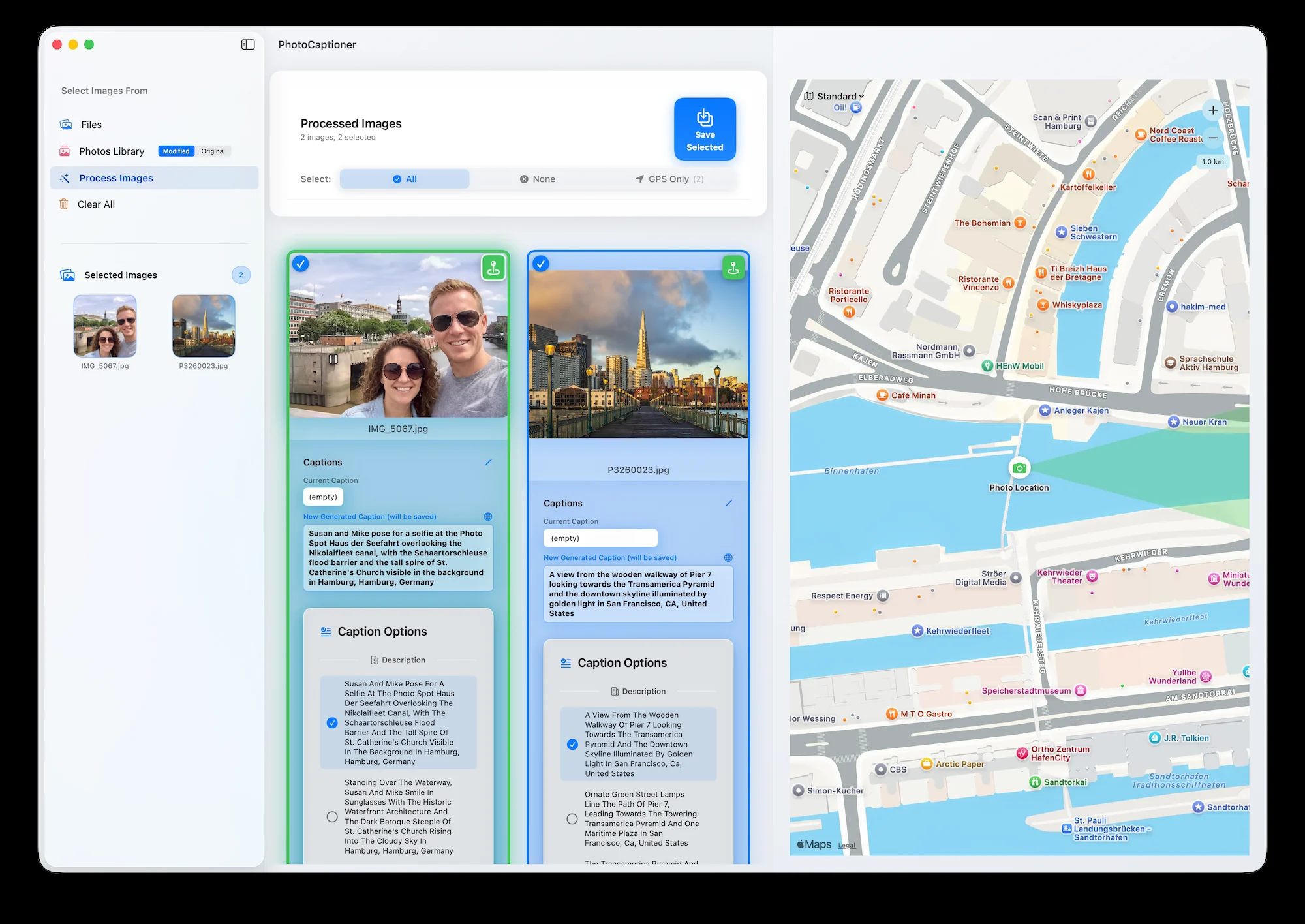

How to set a monthly spend cap on the Gemini API
Enabling billing removes Google's free-tier ceiling — put a hard limit in place first, and it costs less than you'd think.

If you’re captioning more than a handful of photos at a time, you’ll eventually enable billing on the Google Cloud project behind your Gemini key. It removes the free tier’s daily ceiling and unlocks Gemini 3.1 Pro. Before you flip that switch, put a spend cap in place.
Why a spend cap, not just an alert
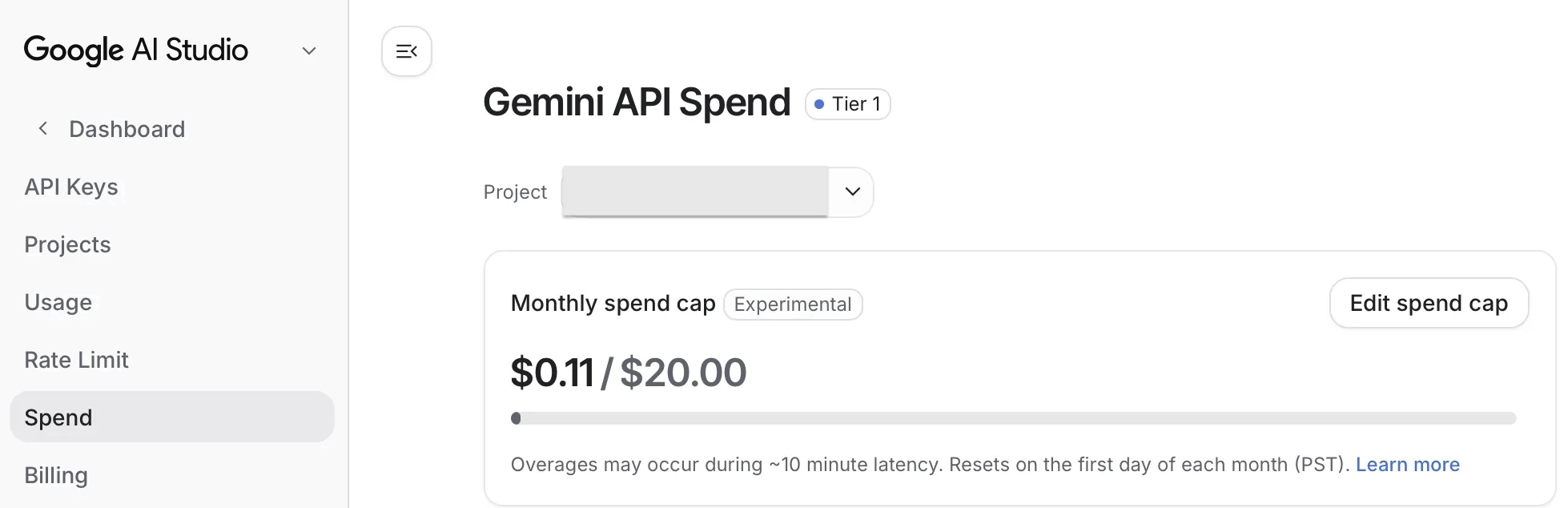
Budget alerts only notify you — they don’t stop usage. A monthly spend cap in Google AI Studio is a hard ceiling your key cannot spend past in a calendar month.
How to set it
- Open Google AI Studio and sign in.
- Click Dashboard, then Spend.
- Confirm the Project matches your key’s project.
- In Monthly spend cap, click Edit spend cap.
- Enter a limit — say $20.00 — and save.
What it actually costs
Less than most expect — a large batch on Flash is typically a few cents. For current rates, see Google’s Gemini API pricing page.
PhotoCaptioner AI
Ready to caption your photo collection?
Try your first 25 captions free. Unlock Pro with one purchase—no subscription.