
How to add captions to your photos on a Mac
The built-in options, what they quietly get wrong, and how to caption a whole library without typing a word.
There are three ways to add captions to your photos on a Mac, and they are not equivalent. One of them isn’t really a caption at all — it looks like it works, then quietly disappears the moment you send the photo to someone else.
Here’s what each option actually does, and which one you want.
First: what is a “caption”, really?
A caption isn’t a filename or a note in an app. It’s a text field stored inside the image file itself, in a standard called IPTC — the same field newsrooms, photo agencies, and stock libraries have used for decades.
That distinction matters because a real caption travels with the photo. Copy it to a USB stick, email it, import it into Lightroom, hand it to a publisher — the caption is still there. Anything stored outside the file is a note to yourself, not a caption.
Option 1 — The Photos app (fine for one or two)
The Photos app has a proper description field:
- Open Photos and select an image.
- Press ⌘I to open the Info window.
- Type into the Add a Caption / description field.
- Close the window — it saves automatically.
This is genuine caption text, and when you export the photo (with metadata included) it gets written into the file. The catch is obvious the moment you have more than a handful of photos: it’s one photo at a time, typed by hand, and it lives in your Photos library until you export it.
Good for a dozen photos. Miserable for a thousand.
Option 2 — Finder comments (the trap)
This is the one that catches people out. In Finder you can select a photo, press ⌘I, and type into the Comments box. It looks like exactly what you wanted.
It isn’t. Finder comments are stored in macOS’s own file-attribute system, not inside the image. They’re useful for Spotlight searches on your Mac, and that’s the end of it. Email the photo, upload it, copy it to a drive formatted for anything other than macOS, and the text is gone without warning.
If you’ve been captioning this way, that’s the disappearing-text mystery explained.
Option 3 — Write them automatically
The real problem isn’t where the caption goes. It’s that describing photos is tedious, and nobody does it for their whole library. A few thousand photos at even twenty seconds each is days of work, which is why almost everyone’s library is uncaptioned.
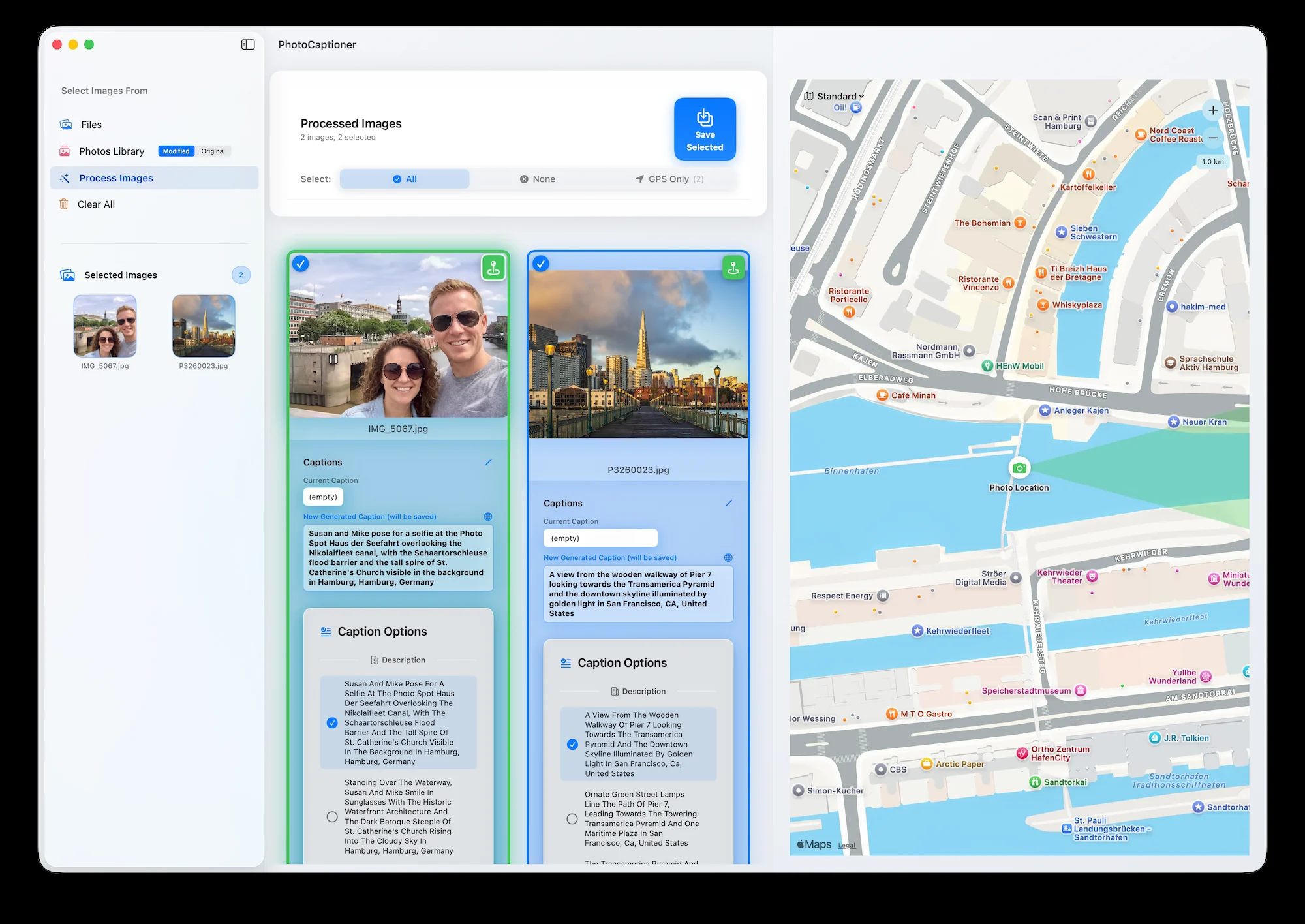
That’s the part worth automating. PhotoCaptioner AI is a native Mac app that looks at each photo, writes a description of what’s actually in it, and saves that text into the file’s IPTC caption field — the real one, from option 1 — for as many photos as you point it at.
It works like this:
- Point it at a folder on your Mac or at your Photos Library.
- It generates a caption for each image using Google’s Gemini.
- Review the results, edit anything you disagree with.
- Save — the captions are written back into the files where they started.
Because the text lands in the standard metadata field, everything downstream just works: Spotlight finds it, Lightroom reads it, publishers get it.
What it costs
Your first 25 photos are free, with no Google account or API key to set up, so you can see the captions before paying anything. After that, photo packs start at $4.99 for 50 photos. They never expire, and there’s no subscription.
If you’d rather use your own Google Gemini API key and pay Google directly, that’s an optional setting: how to get a free Gemini API key.
Which one should you use?
| If you have… | Use |
|---|---|
| A few photos to caption by hand | The Photos app (⌘I) |
| Notes just for yourself, on this Mac | Finder comments — but know they don’t travel |
| A library you’ll never caption manually | Automatic captions |
If you only remember one thing: don’t use Finder comments for anything you care about. They aren’t captions, and they won’t survive leaving your Mac.
Why bother captioning at all?
- You can actually find things. “The photo of the red door in Lisbon” becomes searchable text instead of a memory.
- Accessibility. Screen readers read the description. An uncaptioned photo is invisible to anyone who can’t see it.
- It’s future-proof. IPTC is a decades-old open standard. It’ll outlive any app, including this one.
- Publishers and stock sites expect it. Many reject images without caption metadata.
Your photos already know where and when they were taken. Captions are the part that says what they are — and that’s the part that makes a library searchable instead of just large.
PhotoCaptioner AI
Ready to caption your photo collection?
Try your first 25 captions free. Unlock Pro with one purchase—no subscription.