
How to get a free Google Gemini API key
Everything PhotoCaptioner AI needs to start writing captions — and it costs nothing to set up.
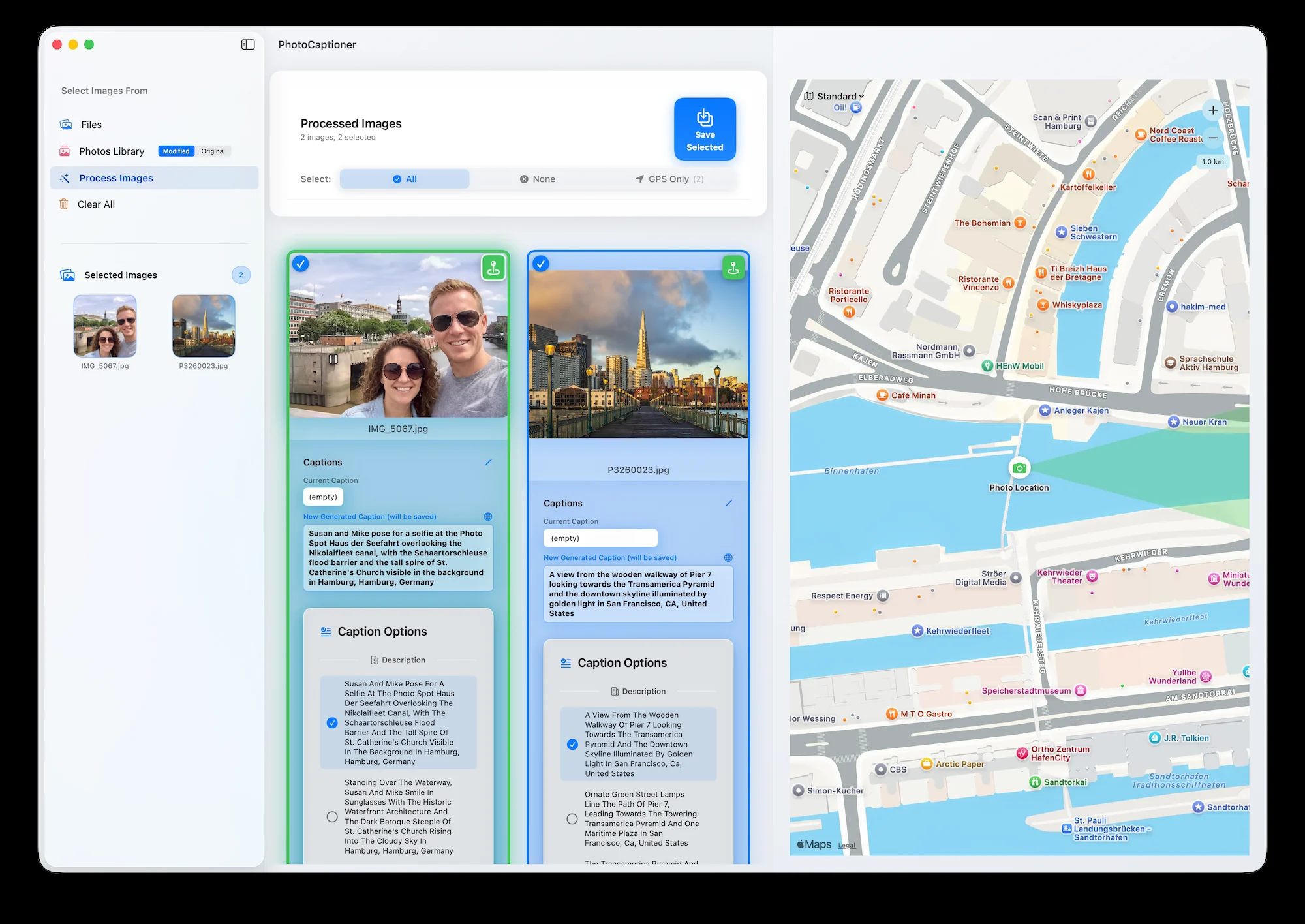
With your own Google Gemini API key, photos go directly from your Mac to Google, so you’re billed directly by Google, or you stay on Google’s free tier. This guide walks through creating that key from scratch, in about two minutes.
Do you need to pay anything?
No. The default model, Gemini 3.6 Flash, runs on Google’s free tier. No credit card is required. The free tier is capped at roughly a few dozen captions per day, which resets daily. If you outgrow it, enabling billing lifts that ceiling (see our guide to setting a spend cap first).
Step 1 — Open Google AI Studio
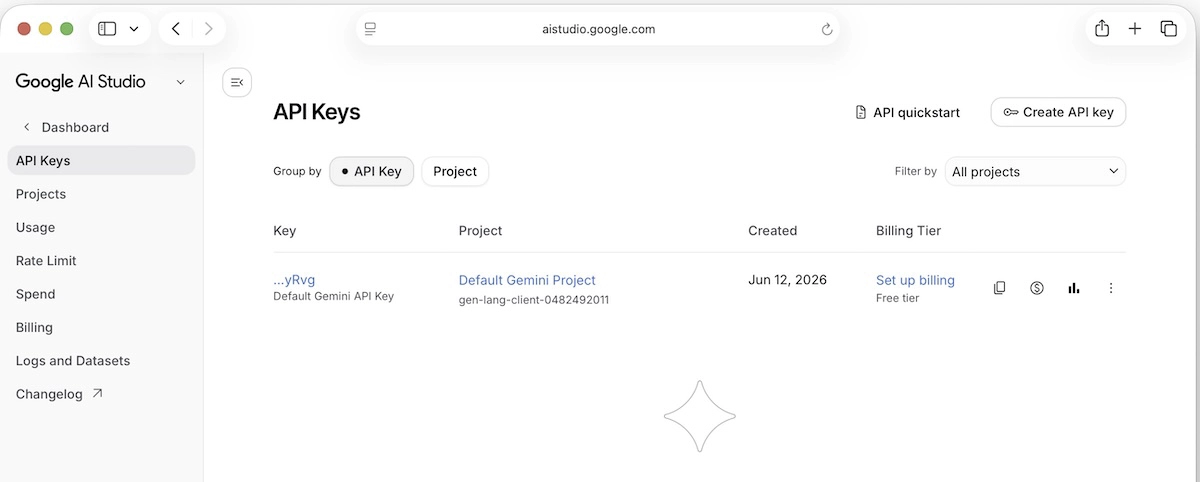
Go to aistudio.google.com/app/apikey and sign in with the Google account you want to use.
Step 2 — Create the key
- Click Create API key.
- Accept the Gemini API Terms of Service if prompted.
- Create the key in a new project — no billing needed for Flash.
- Copy the key. It begins with
AIza….
Step 3 — Add the key to PhotoCaptioner AI
- Open Settings → API Keys, or press
⌘,. - Turn on Caption with my own Google key, then paste the key into the Google Gemini API Key field.
- Click Save, then Verify.
The key is stored in the macOS Keychain — never in plain text, and never sent anywhere except Google’s own API over HTTPS.
Which model should you pick?
Start with Gemini 3.6 Flash — excellent and free. Gemini 3.8 Flash is a newer option, slower and more tokens per photo. Gemini 3.1 Pro is better at specific venues and detail but needs billing. Switch anytime in Settings.
PhotoCaptioner AI
Ready to caption your photo collection?
Try your first 25 captions free. Unlock Pro with one purchase—no subscription.